GOAL: Use the Mattermost app to access your account quickly and easily. You will learn how to download the app, log in, and connect to your workspace so you can stay connected without using a web browser.
Task:Download the Mattermost app for your device and install it. Click “Get Started” and connect to the OpenETC Mattermost server by entering the Server URL https://chat.opened.ca and choosing a display name you’ll recognize. Log in to your account and confirm you’ve reached your Mattermost dashboard.
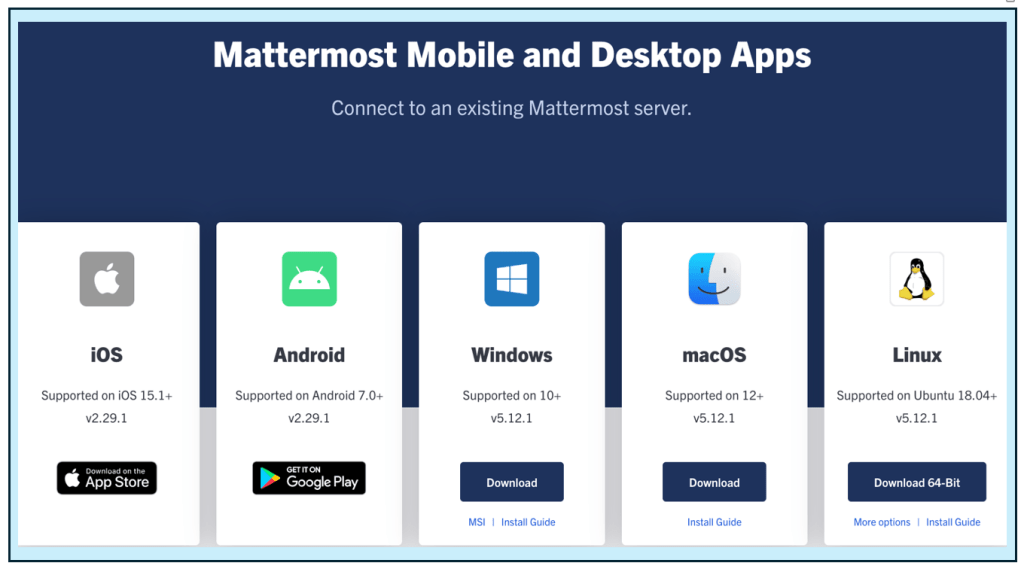
The first thing you will need to do is download the Mattermost application. If you are on a phone, go to your device’s app store. If you are on a desktop, you’ll need to download it from the internet using the Mattermost website.
Important: Follow the link: https://mattermost.com/apps/ to find the correct download link based on your device.
Important: For the remainder of this guide, I will be guiding you through the process on a desktop Mac. However, the process is similar on handheld devices as well.
Once the app is downloaded, you will want to locate it on your computer and click on it to open.
The first thing you will need to do is press “Get Started.”
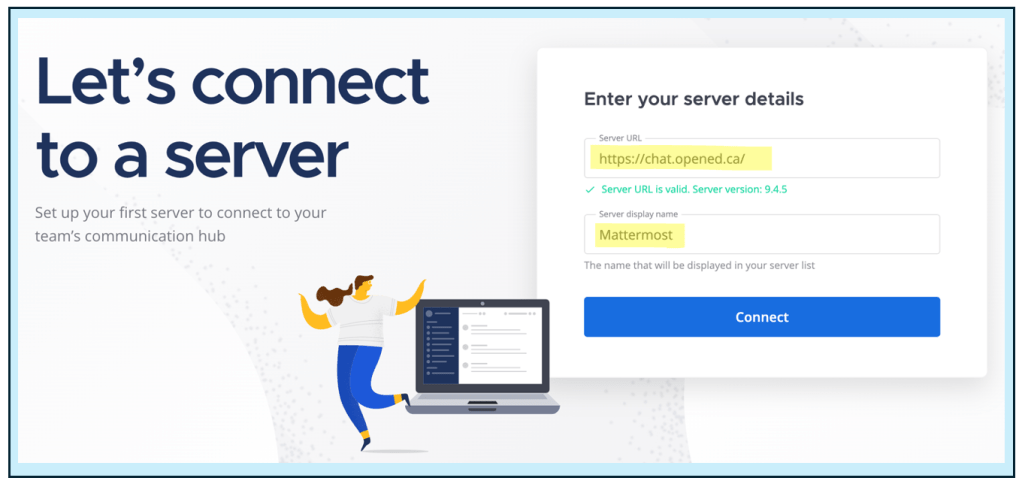
Then, you’ll need to connect to the OpenETC Mattermost server.
Important: When prompted, enter the following details:
– Server Display Name: You can choose any name that helps you recognize the server, such as “OpenETC Chat” or “UVic Mattermost.”
You will see a screen similar to the one in the first guide; however, this screen will be for logging in, rather than creating an account.
Important: If you have not completed the ‘Creating Your OpenETC Mattermost Account,’ you will need to do this first. You cannot create an account from this page.
Once you have logged in, you’ll be taken to your Mattermost dashboard, which is where you’ll need to be for the next guide!




 Digital Literacy Tutorials