
| Goal: The goal is to include links to your peers’ blog posts in your own WordPress post and write responses that are respectful, thoughtful, and help keep the conversation going. This will help you build connections and earn your Community Contributions assessment grade. |
- Navigate to your WordPress Dashboard.
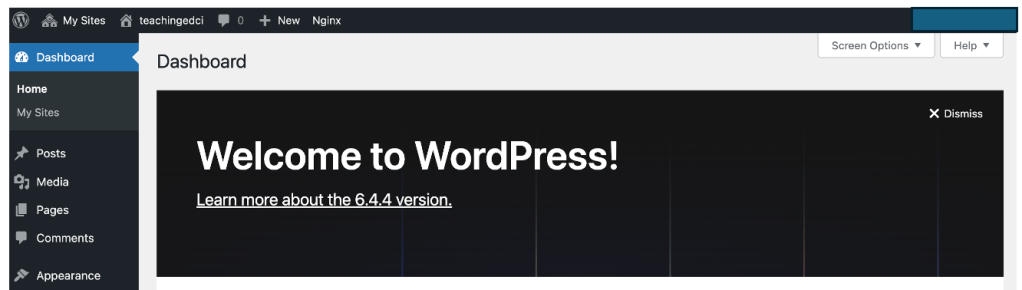
- Click on Posts.
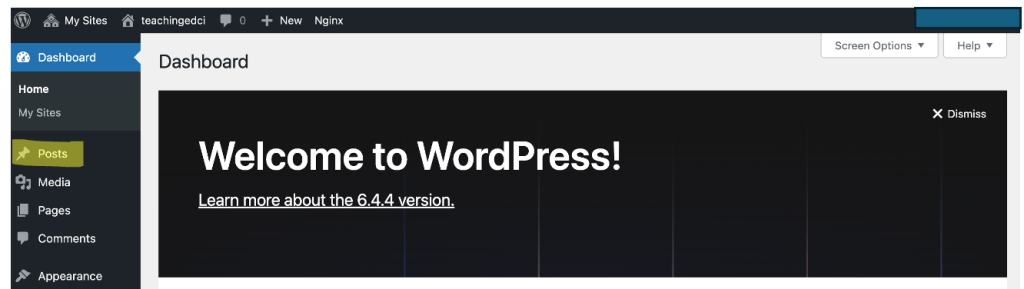
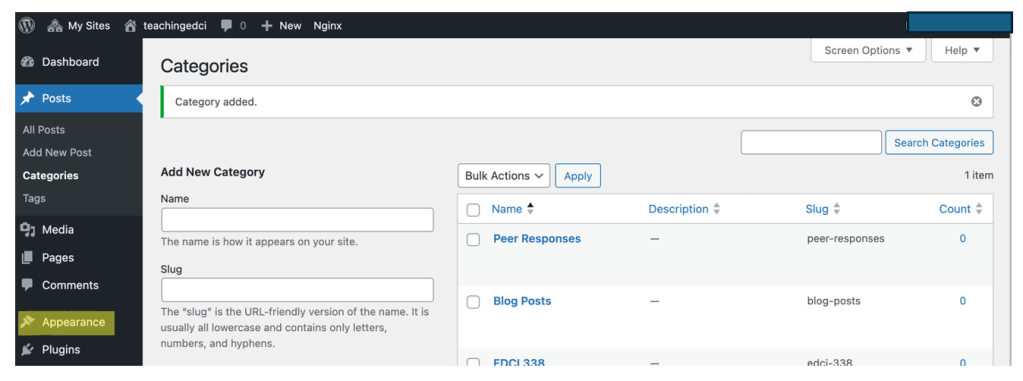
- Click on Categories.
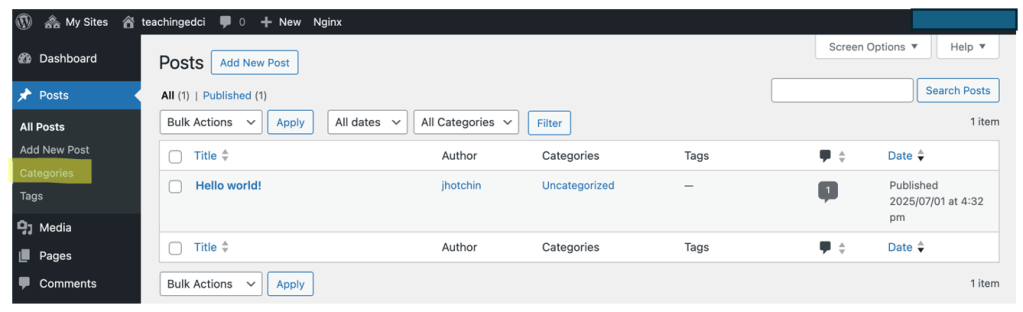
- Add a new category (The Name will be “Peer Responses.”; The Slug can be “peer-responses.”)
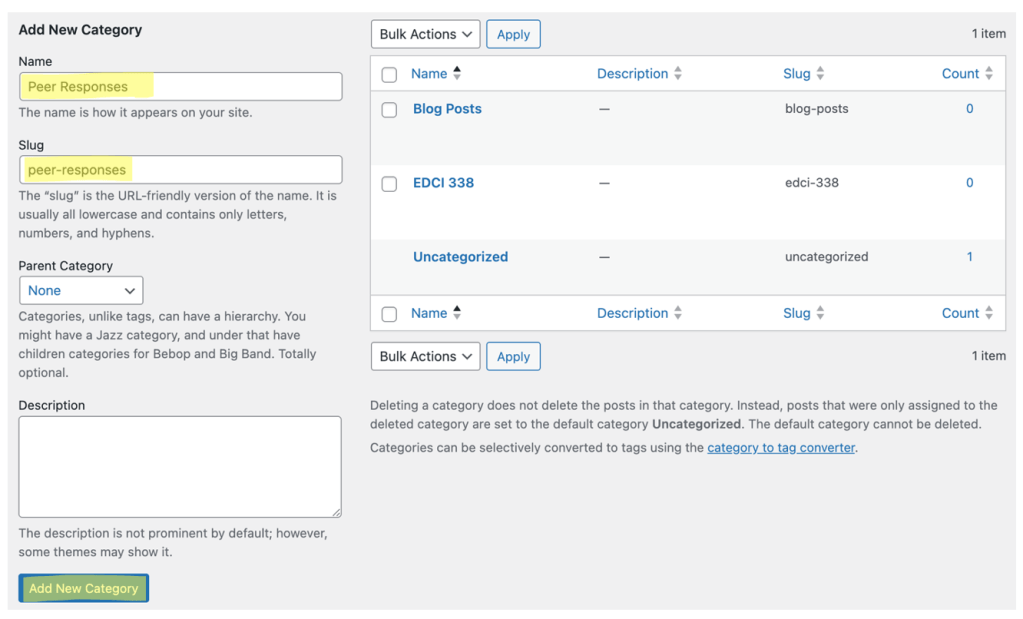
| Important: Make sure that you click ‘Add New Category’ at the bottom. |
- Click on Appearance in the sidebar.
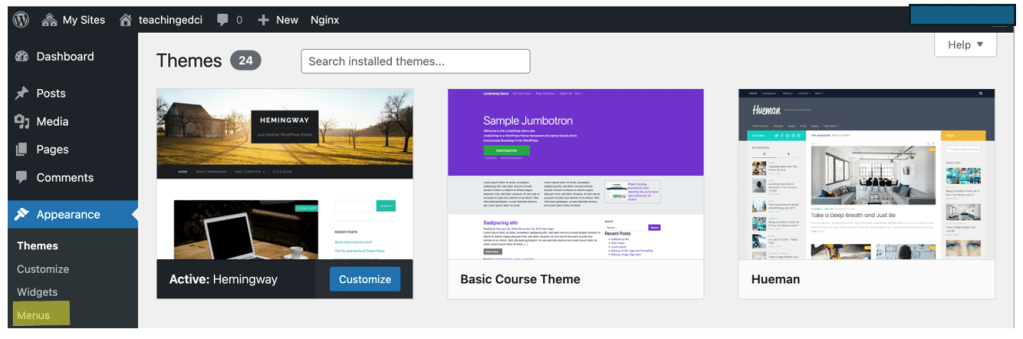
- Click on Menus
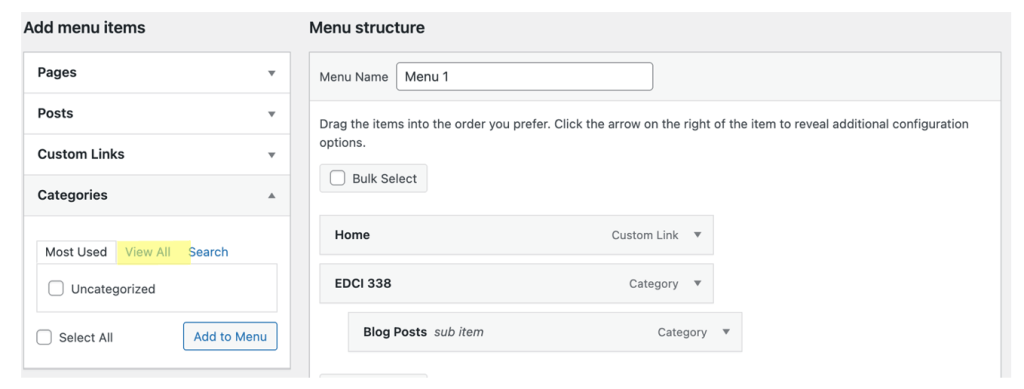
- Add your new category from the Add Menu Items section

- You’ll need to select ‘View all’
- Click ‘Peer Responses’ and add to menu

- Drag the new menu item to where you want it to appear in your menu and make sure that the ‘Primary Menu’ box is clicked at the bottom.
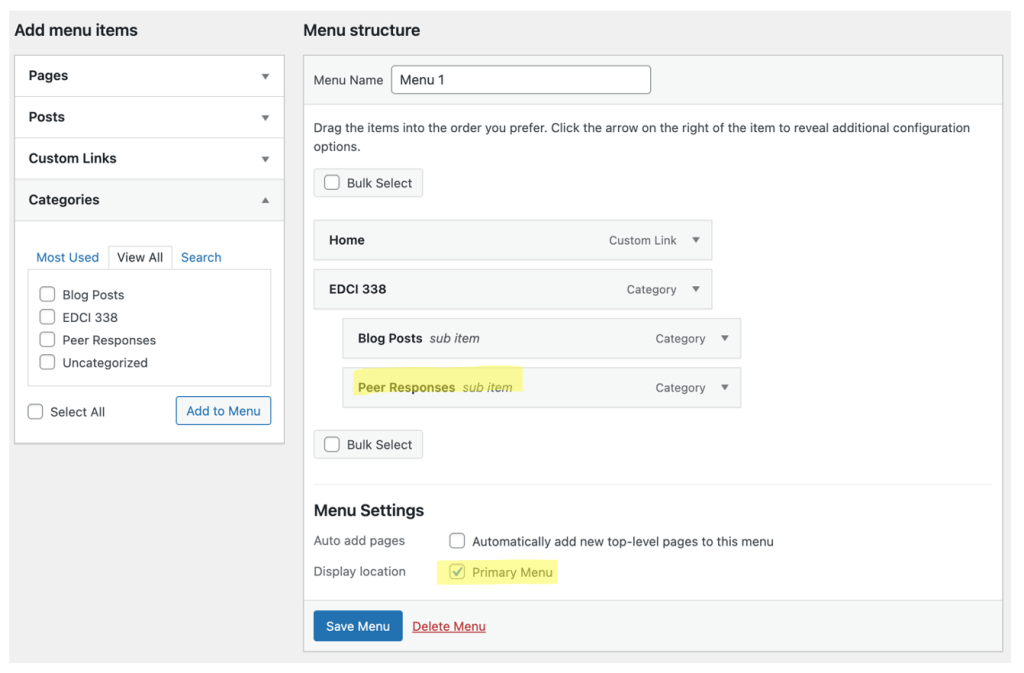
- Press ‘Save Menu’

| Goal: The goal is to make sure your post is published under the right category and that you’ve embedded your peer’s blog post into your own, so your responses are organized and easy for others to find. |
- Navigate to your WordPress Dashboard
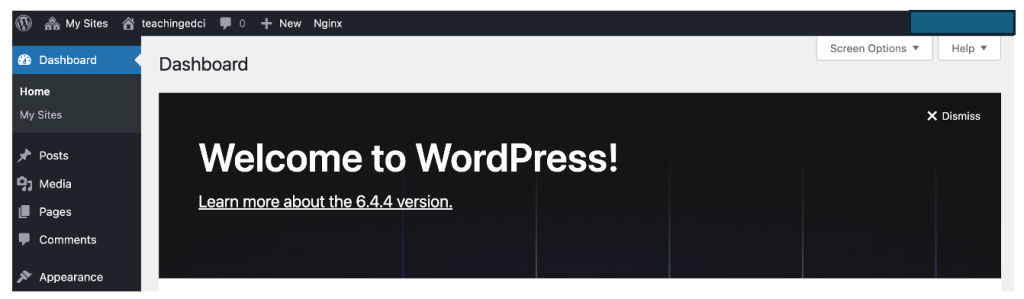
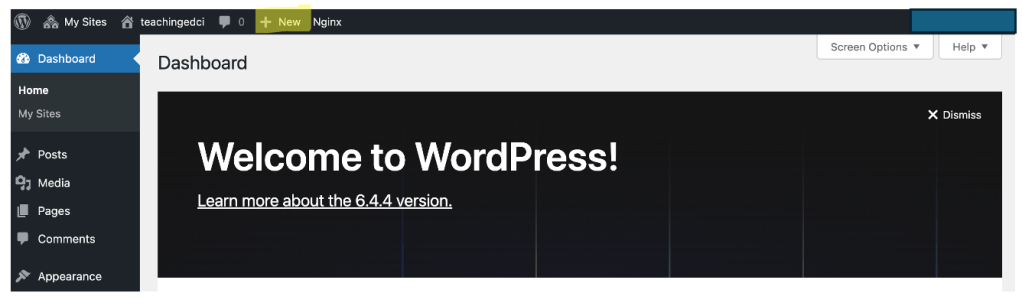
- Click New on your top menu bar.
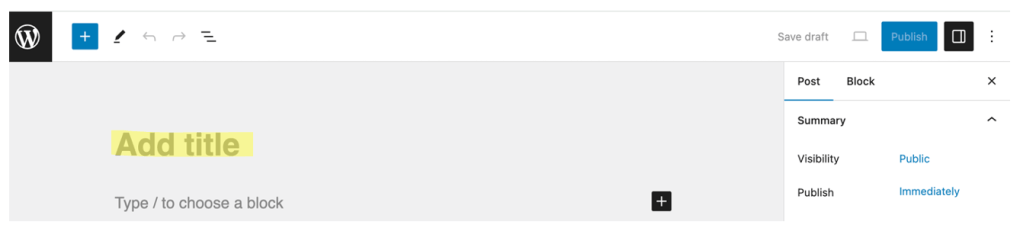
- Add a title that shows us what the post is about.
- You will need to get the URL for the specific post that you are responding to (not the entire website, but the specific post). If you are viewing it on someone’s website, you will need to click the post’s title.
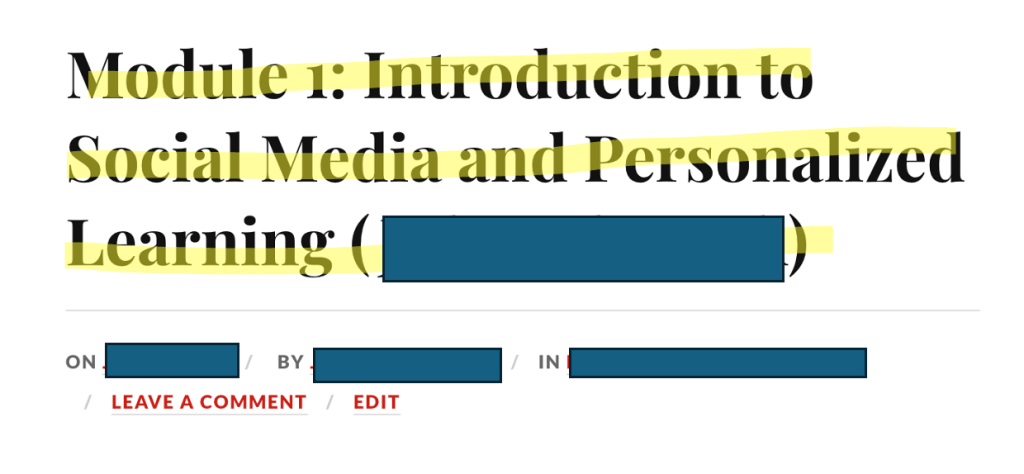
| Important: If you hover over the title and it shows a hyperlink, you need to click it. |
- Copy the URL for the post.

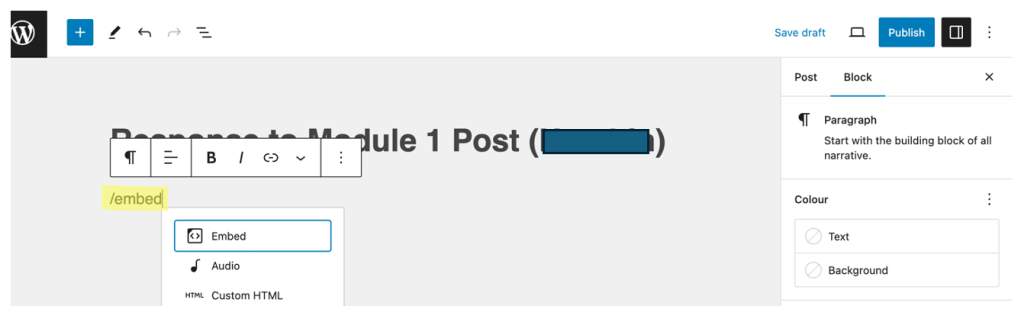
- Type /embed in your post.
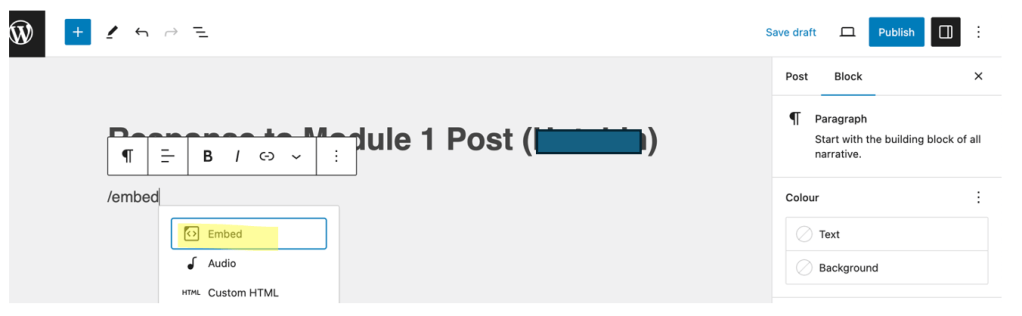
- Click on the ‘Embed’ button.
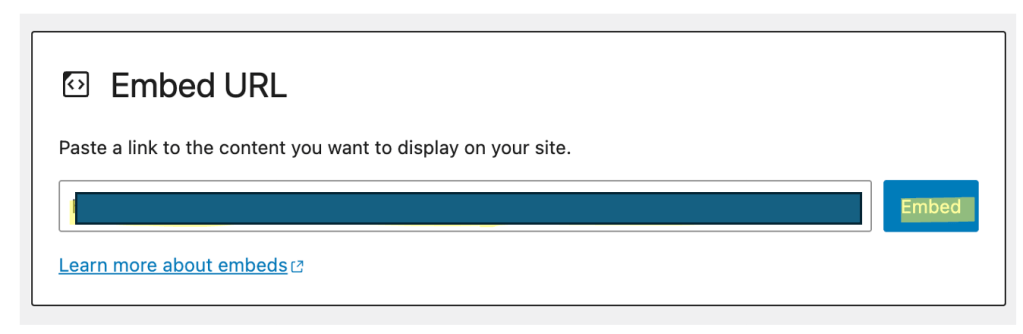
- Paste the URL into the box and press Embed.
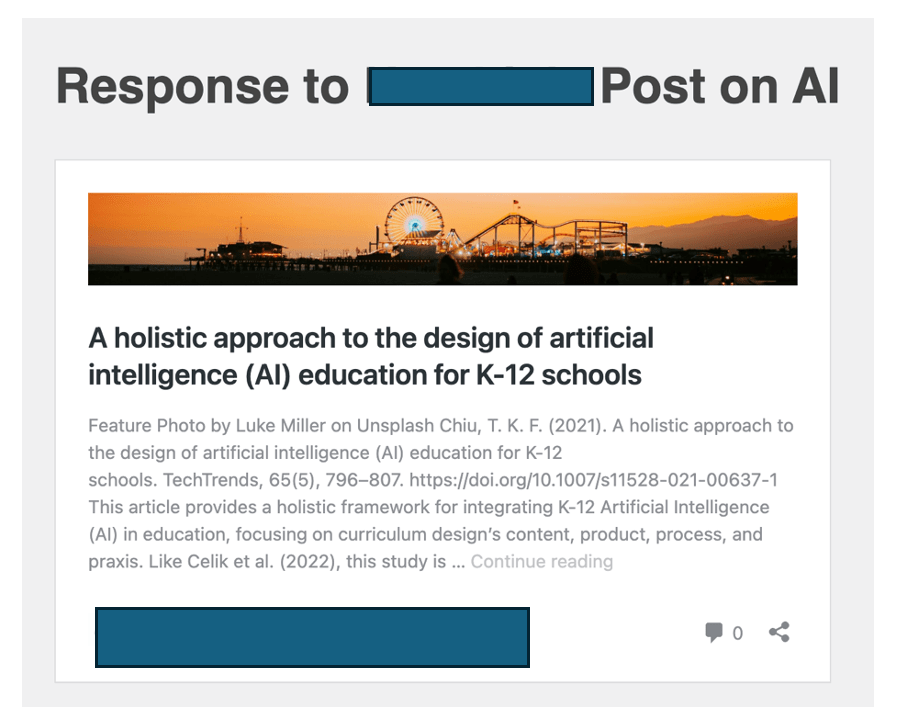
- If you have the correct URL, it will embed as shown below. You can then put your response in here.
- Follow the Responding to Peers’ Blog Post Guidelines to form your response.
 Digital Literacy Tutorials