
| Goal: Learn how to navigate the Mattermost dashboard, find your channels, send messages, adjust notifications, and manage your profile settings so you can confidently use Mattermost for your coursework. |
| Task: Open your Mattermost Dashboard in the web browser or app. Send a message in one of your channels and try using the paper clip icon to attach a file (It could be an image to introduce yourself). Explore the left column to find and join any channels your instructor recommends. Finally, locate your settings and profile in the top bar to get familiar with where to adjust your account details. |
- To open your Mattermost Dashboard, navigate to https://chat.opened.ca/ in your web browser or open your Mattermost app.
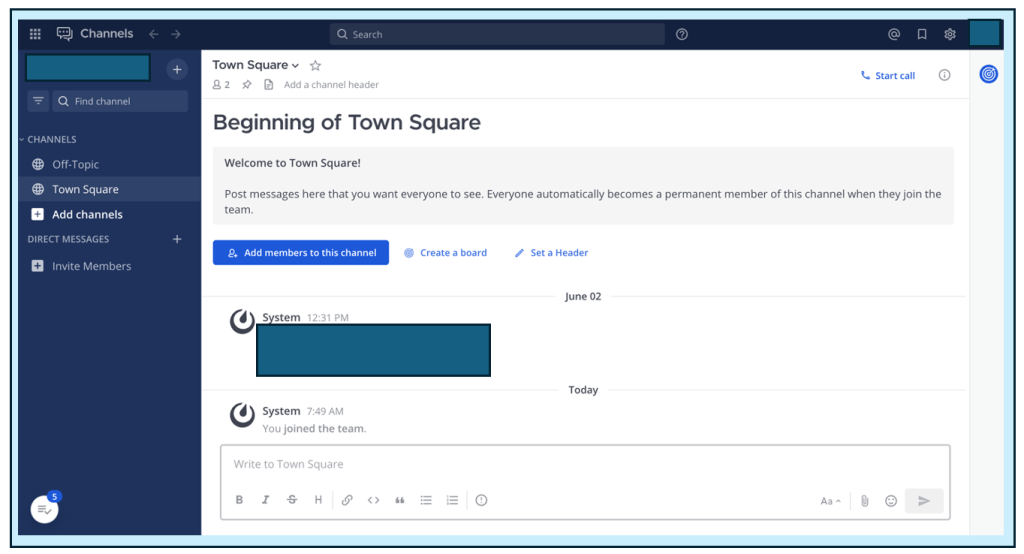
| Important: This is your Mattermost Dashboard. It’s where you can see all of your channels, direct messages, and connect with the rest of the members from your course. |
- To send a message, it is very similar to other messaging platforms. You simply type your message in the text box and click the arrow icon to send.

| Tip: You can attach documents, images, files, and more using the paper clip icon. |
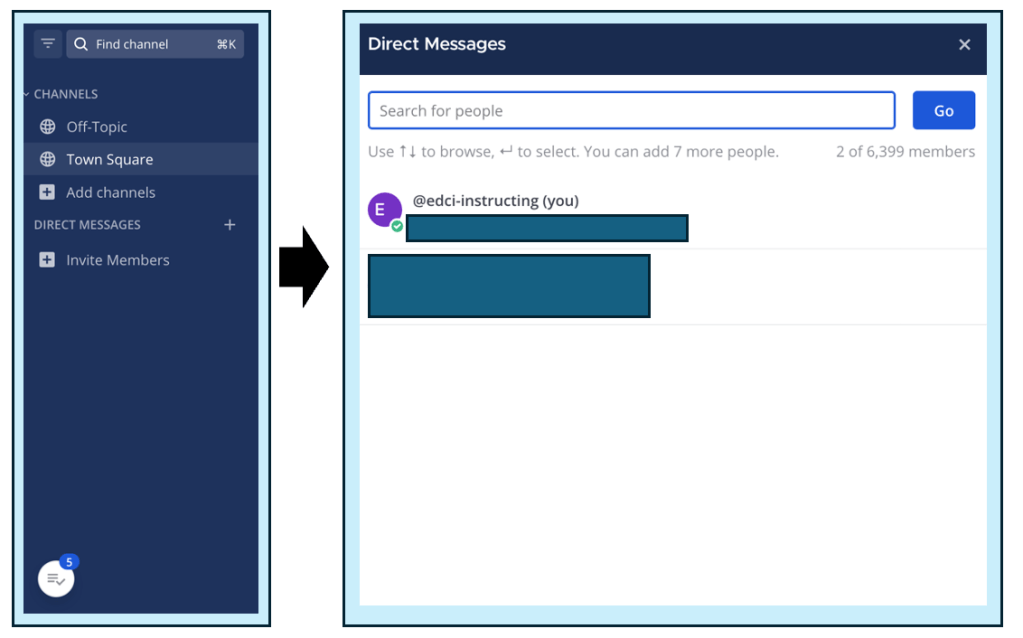
- You can add any channels that your instructor asks you to join. Use the column on the left side of the screen to find and join these channels.

- You can also send direct messages to PodGroup members, other people in the class, or your instructor.
- You can also find your settings and profile located on the top bar. This will be explained in more depth in the next guide.

Once you have completed the steps above, please move on to the next guide: Updating Your Profile in Mattermost
 Digital Literacy Tutorials