
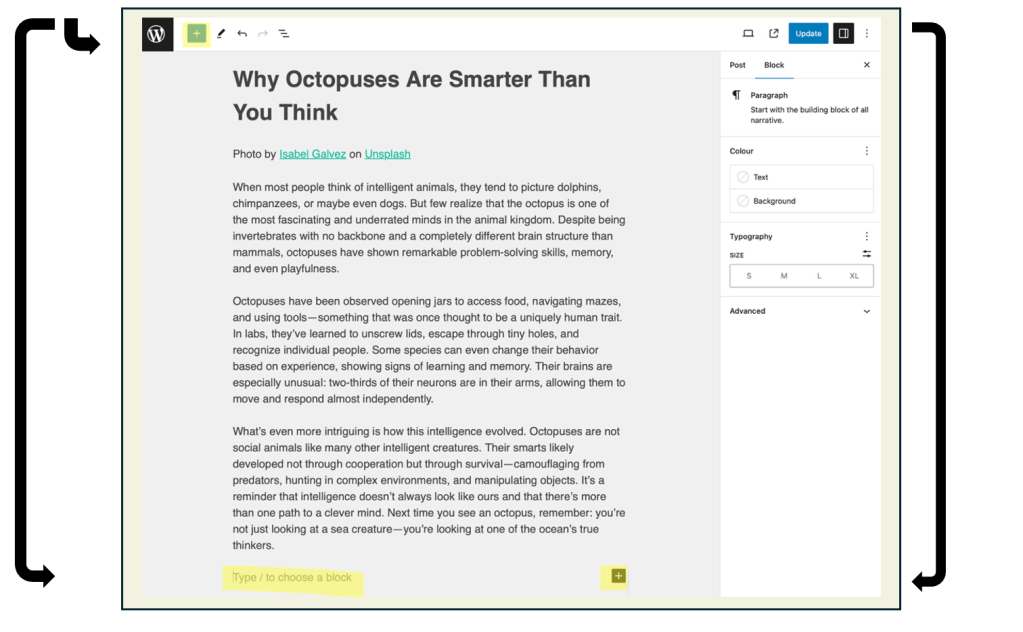
- To add an image to your blog post, click the plus sign (+) on your screen or type /image on a new line to insert an image block.

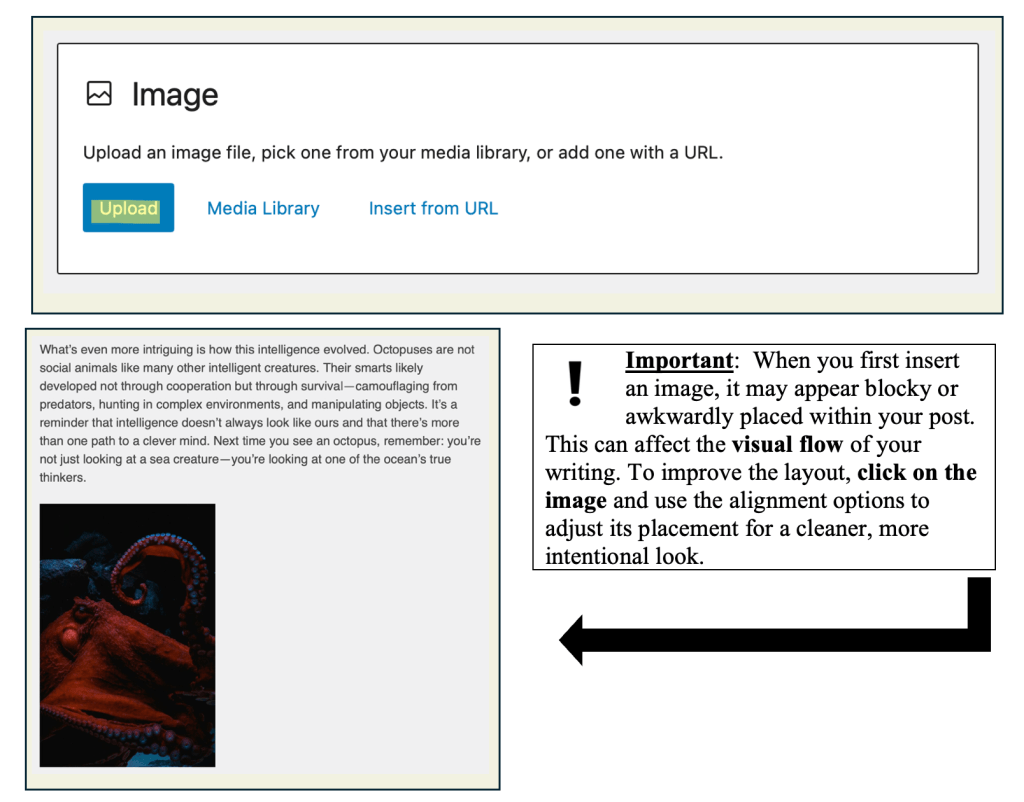
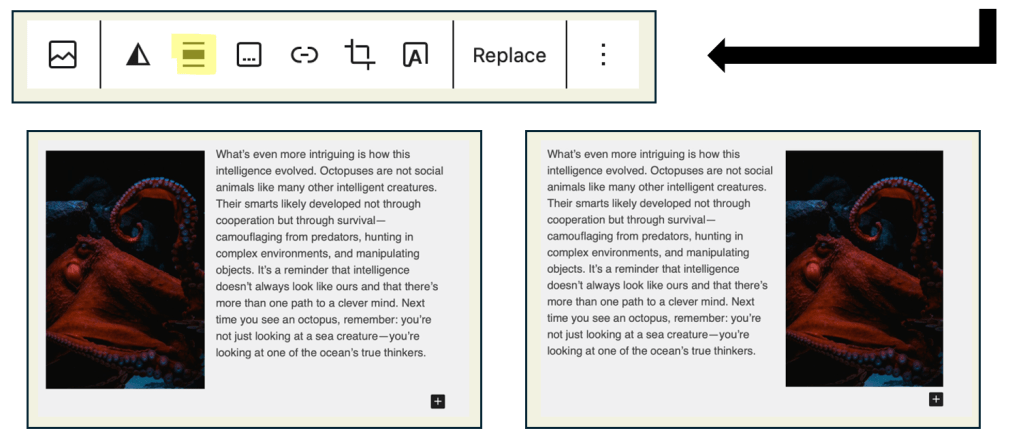
| Tip: After adding an image, click on it to access additional formatting options. Use the Align button to wrap text around the image—this helps your layout look more polished and less clunky (Try ‘Align left’ and ‘Align right’) |
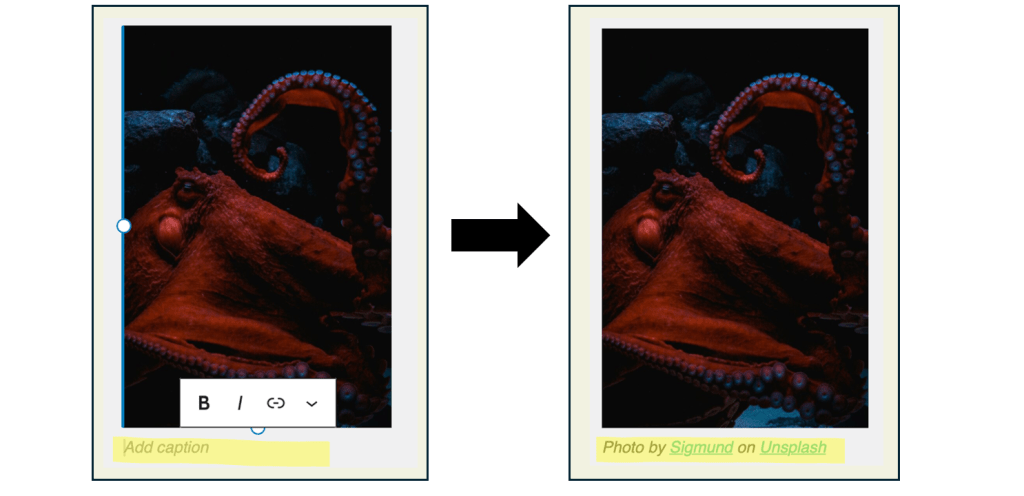
| Important: Just like with your featured image, it’s important to include attribution for any images you add to your post. You can do this by clicking on the image and using the Caption field to credit the photographer or source. |

| Task: Add at least one image to your blog post that supports or enhances your content. Make sure the image is properly aligned for visual appeal, and if it’s not your own, include attribution using the caption feature to credit the original creator. |
 Digital Literacy Tutorials