
| Goal: Learn how to adjust your Mattermost settings so you can control your notifications, appearance, privacy, and other preferences. This will help you make Mattermost work best for your learning style and ensure you don’t miss messages. |
| Task: Go to your Mattermost dashboard and click the Settings icon in the upper right-hand corner. Explore the options on the left-hand side, including Notifications, Display, Sidebar, and Advanced. Adjust your notification preferences to ensure you won’t miss important messages, and customize other settings to make Mattermost work best for you. |
- On your Mattermost dashboard, select the Settings icon in the upper right-hand corner.

- On the left-hand side, if you select Notifications, you can change your notification preferences. That said, please ensure that you either have notifications enabled to some extent or plan to check this platform multiple times per day, as this is a condensed course.
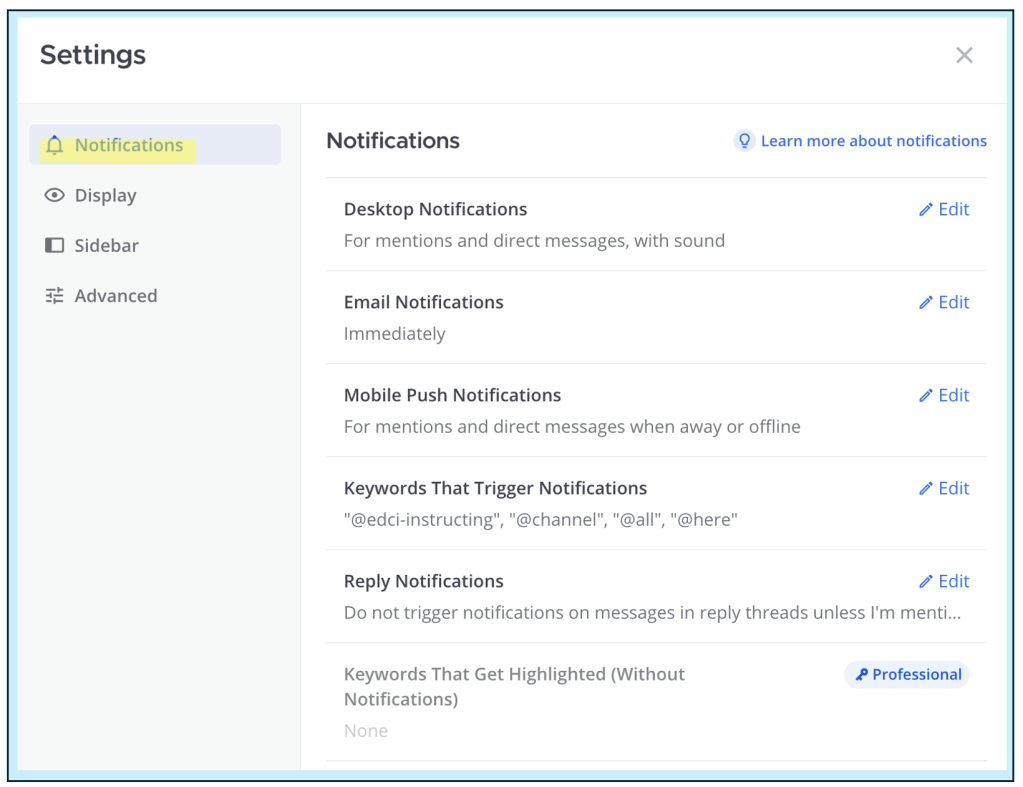
| Important: As you can see under the Keywords That Trigger Notifications section, there are certain keywords that will trigger notifications. This can be particularly helpful if you need to notify all members or get in touch with your instructor. You can do this by typing @ followed by your instructor’s username (e.g., @instructorusername). |
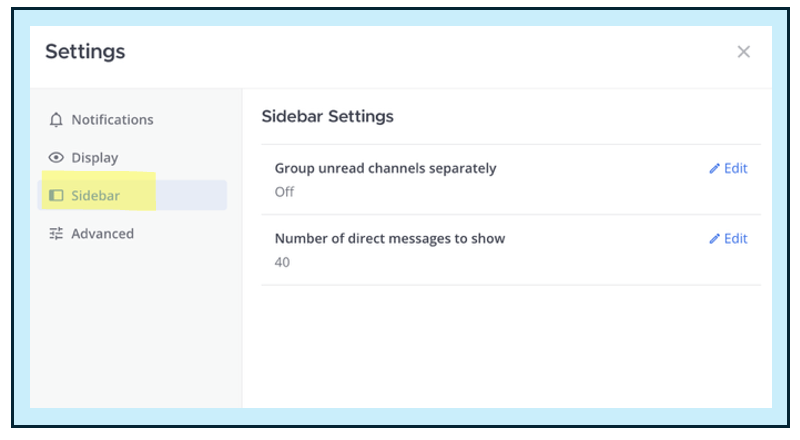
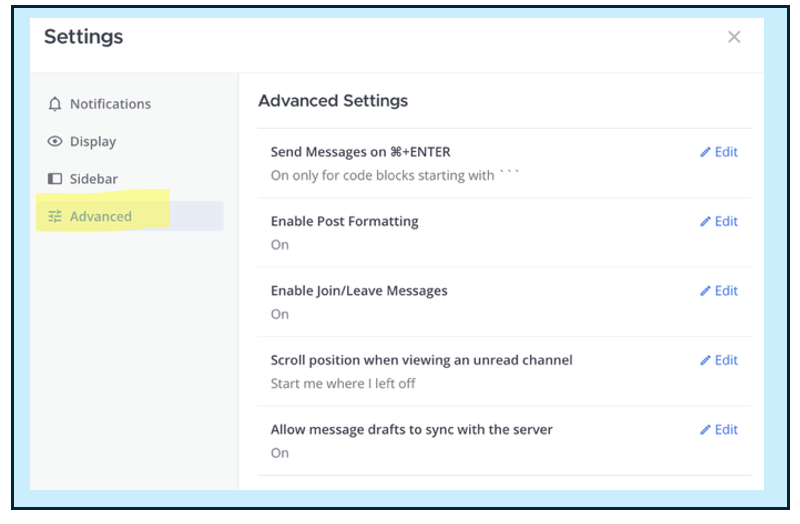
- You can then do the same for Display, Sidebar, and Advanced settings, which are all options on the left-hand side of the settings menu.

 Digital Literacy Tutorials