
| Goal: Sign-in to your UVic Zoom account by using the UVic Zoom website so you can access meetings securely and bypass the waiting room. |
Option #2: Signing in through the UVic Zoom website.
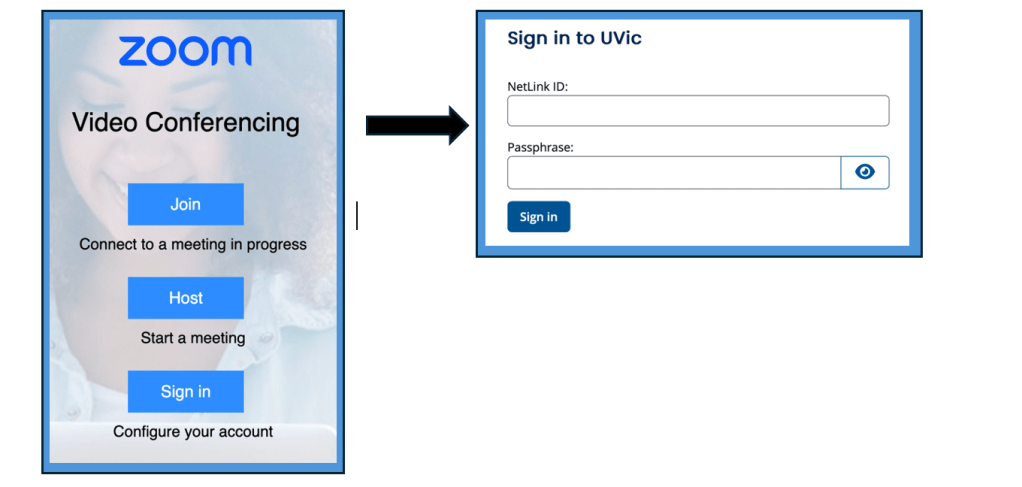
- In your browser’s address bar, type ‘https://uvic.zoom.us’ and press ‘Enter’ to navigate to the UVic Zoom portal.

- From the options on the UVic Zoom portal page, click ‘Sign in,’ then enter your ‘UVic Netlink ID’ and ‘password’.
| Important: You may need your phone nearby in case UVic sends you a Duo Push notification to complete the two-factor authentication. |
- From the menu bar at the top of the page, click ‘Join,’ then enter the ‘Meeting ID’ provided to you (e.g. in an email, calendar invite, or course syllabus).

 Digital Literacy Tutorials