Goal :
Option #1: Signing in through the Zoom Application (Desktop)
Click on the ‘Zoom Application ’
Once the Zoom application opens, click the ‘Sign In ’ button from the options below.
Important
From the Zoom sign-in page, select ‘SSO ’ as your sign-in method.
Important: Company Domain ’ is uvic.zoom.us. This tells Zoom to redirect your login through UVic’s secure SSO system.
Enter ‘uvic ’ as the company domain, then click continue . You will be prompted to sign in using your UVic NetLink ID and password.
You will see a pop-up message asking, “Do you want to allow this website to open ‘zoom.us’?” Click ‘allow
Note: allow
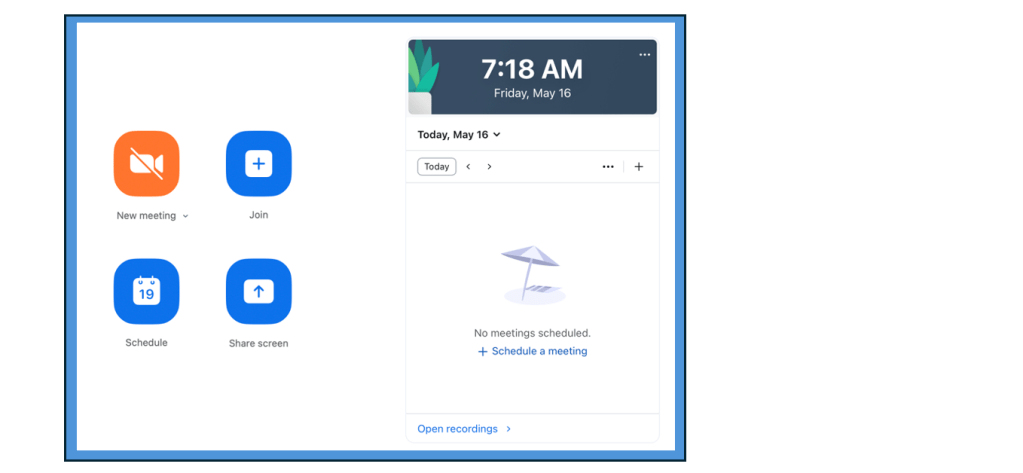
Once your Zoom dashboard opens, you can join a meeting by:
Clicking ‘Join Opening a ‘Zoom link ’ shared via email, calendar invite, course syllabus, etc.
If you do not have the Zoom Application, please follow the next guide: Accessing Zoom: Using Your UVic Account (Website)






 Digital Literacy Tutorials